

Seventy percent of children ages 8 to 17 were interested in trying VR, while just 17% said they owned a headset, according to a policy report citing Common Sense Media summarized by the American Academy of Pediatrics. That gap matters: your child's first experience may happen at a birthday party, school event, or friend's house rather than on a device you've configured yourself.
The best VR games for 10-year-olds aren't just the ones with cheerful graphics. They're games that fit the child's account permissions, physical comfort, emotional readiness, and available supervision. Start with stationary puzzles or creative play, not racing, flight, or public social rooms.
Is VR Right for a 10-Year-Old
A 10-year-old can be a reasonable candidate for short, supervised VR play on an eligible headset. But age alone doesn't settle the decision. A child who can follow instructions, explain discomfort, and stop willingly is better prepared than one who treats removing the headset as losing a competition.
My starting rules are straightforward:
- Keep the first experience brief. Set a timer before the headset goes on, rather than negotiating when the child wants to continue.
- Choose a stable viewpoint. Begin with a seated puzzle, drawing activity, or room-scale game without artificial travel.
- Keep an adult present. Supervision means watching the child's movement and comfort, not checking from another room.
- Make stopping normal. Nausea, dizziness, headache, or visual discomfort ends play immediately.
The pediatric guidance is cautious for a reason: children's VR research remains limited. Parents should manage use and protect sleep, exercise, schoolwork, and family interaction. Enjoyment is relevant, but it isn't proof that a longer session is appropriate.
Decide whether the setting works
At home, you can pause, adjust the headset, and change activities without a queue watching. At a festival or party, organizers need to create that same freedom. Don't let a waiting crowd pressure a child into finishing a turn.
Offer a non-headset alternative, such as arcade games, so declining VR doesn't mean sitting out the entertainment. Children should be able to switch activities without explaining themselves publicly.
Practical rule: Treat willingness to stop as part of VR readiness, not as a test of obedience.
Skip the session if the headset won't sit securely, the child can't see clearly, or the available space is crowded. You don't need to make VR work that day. A comfortable introduction matters more than completing an attraction or using a new purchase.
Platform Age Rules and Account Setup
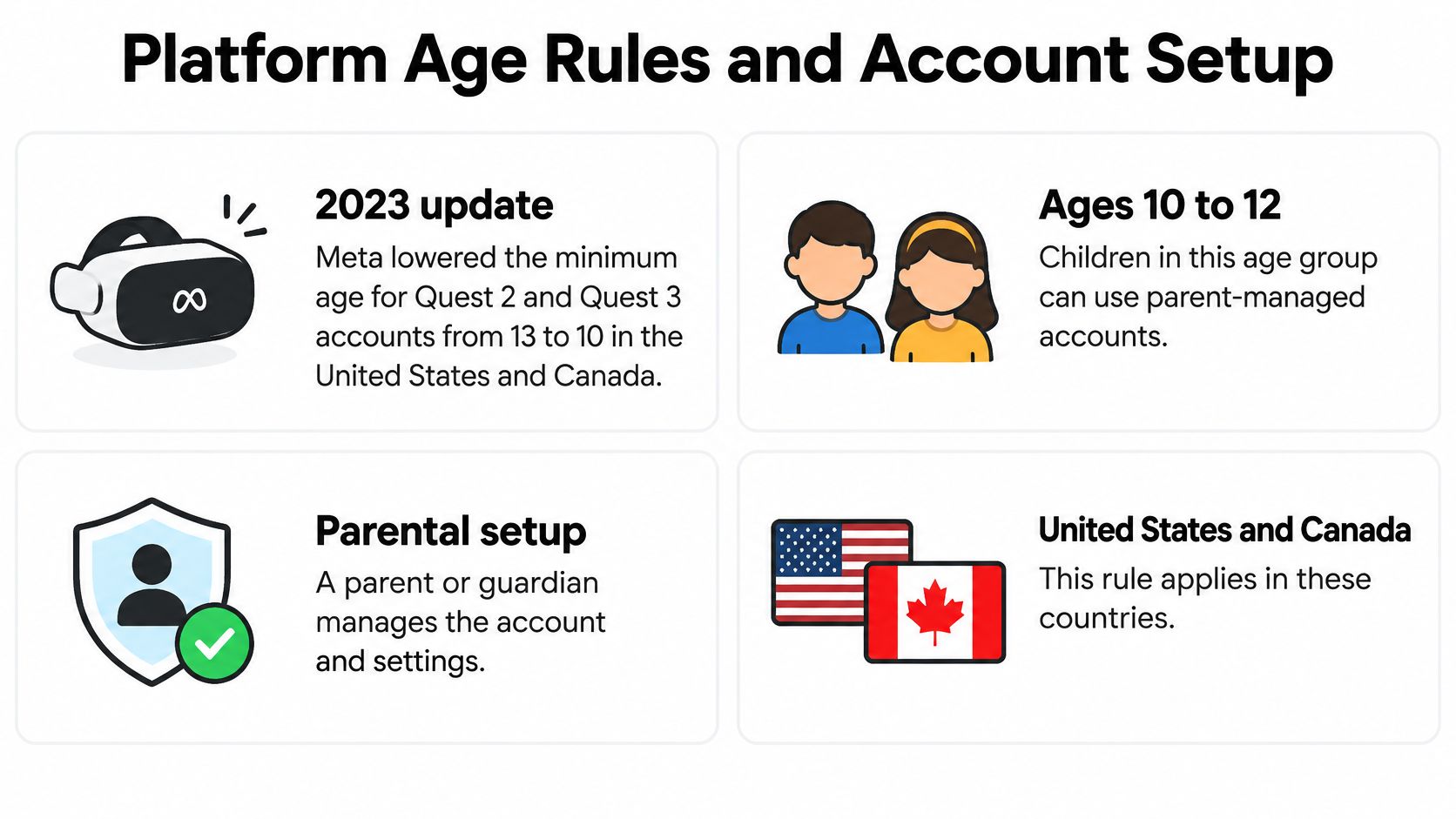
In 2023, Meta lowered the minimum account age for Quest 2 and Quest 3 from 13 to 10 in the United States and Canada, allowing children ages 10 to 12 to use parent-managed accounts with parental approval, as CNN reported. That change opened an account pathway, not a blanket endorsement of every game.
Eligibility is the first gate, not the final decision. Don't borrow an adult account to bypass restrictions, and don't assume a rule for one headset applies to another model or country.
Set up the device before inviting play
- Identify the exact headset. Read the model name in the device settings or on its label. A listing that says only VR headset isn't enough to establish eligibility.
- Check the applicable regional requirements. Use the manufacturer's current guidance for that model and your country. Don't rely on an old review or a retailer's abbreviated description.
- Create the appropriate parent-managed account. Enter the child's real birth date and complete parental approval. An adult profile can expose settings and content that weren't intended for the child.
- Review downloads and permissions. Approve the intended game, inspect its rating and content descriptors, and restrict purchases and communication where available.
- Test fit and boundaries. Adjust the straps, confirm that the picture is clear, and establish the play area before launching anything demanding.
Have the child practice removing the headset while you're beside them. They should know how to pause and ask for help without hunting through menus.
Don't confuse access with fit
A headset can satisfy an account rule and still fit badly. If the child keeps lifting it to see, tightens it until it hurts, or struggles to keep it level, postpone play rather than improvising padding or overtightening straps.
For shared equipment, ask who controls the account and approves software. Schools and event hosts shouldn't leave those decisions to whichever participant happens to pick up the controllers. Account management belongs to a responsible adult before the queue opens.
Game Types Ranked by Motion and Supervision
Game types by motion level, starting session and supervision
| Game type | Motion level | Starting session | Supervision needed |
|---|---|---|---|
| Seated puzzle and creative games | Low | Suitable introductory choice | Light check-ins, adult remains present |
| Room-scale ball and sports games | Low to medium | Try after boundary practice | Adult in room and clear space |
| Rhythm and dance games | Medium | Begin with an easy, brief track | Adult in room and clear space |
| Building and sandbox games | Low to medium | Start in private, stationary mode | Light check-ins, adult remains present |
| Exploration with artificial walking | High | Not for first sessions | Close supervision |
| Racing and flight games | High | Avoid for first sessions | Close supervision |
| Social rooms with voice chat | Assess movement separately | Not for first sessions; review chat settings first | Account and chat settings review plus adult presence |
Use this table as a screening tool, not an age rating. A genre label doesn't tell you whether the camera moves unexpectedly, whether strangers can enter, or whether the child must reach outside the boundary.
Choose mechanics before themes
Seated puzzles and creative activities are my first choice. Look for objects the child can inspect or manipulate while the surrounding scene stays still. Avoid assuming that a colorful puzzle is gentle if it also includes moving platforms or sudden viewpoint changes.
Room-scale ball and sports games can work when the child moves naturally within a cleared area. Watch the actual swing or reach, not just where their feet stand. A controller can strike furniture even when the player hasn't stepped beyond the boundary.
Rhythm and dance games need a different kind of attention. Choose an easy track, remove spectators from arm's reach, and avoid turning the introduction into a score contest. Physical enthusiasm doesn't remove the need for rest.
Building and sandbox games deserve a mode-by-mode inspection. A private creative space with a stable viewpoint is a different proposition from a public world with unrestricted movement and user-created content.
Save demanding movement for later
Exploration with joystick walking, racing, and flight should come after comfortable introductory play. Watch a preview of the actual gameplay, including turns and transitions. A slow opening scene may conceal an intense later sequence.
Social rooms sit outside a simple motion ranking. A room can be visually calm while still exposing a child to unwanted conversations or contact requests. Don't trade communication safeguards for the promise of playing alongside friends.
For an event VR experience, ask for the exact game and mode, not merely a description such as family-friendly adventure. Ask whether the operator can select a stationary option and prevent public interaction.
A child who enjoys one VR game hasn't passed a general VR tolerance test.
Move toward more demanding mechanics only after comfortable sessions with simpler experiences. There's no need to progress at all if the child enjoys stationary play.
Motion Sickness Signs and What to Do
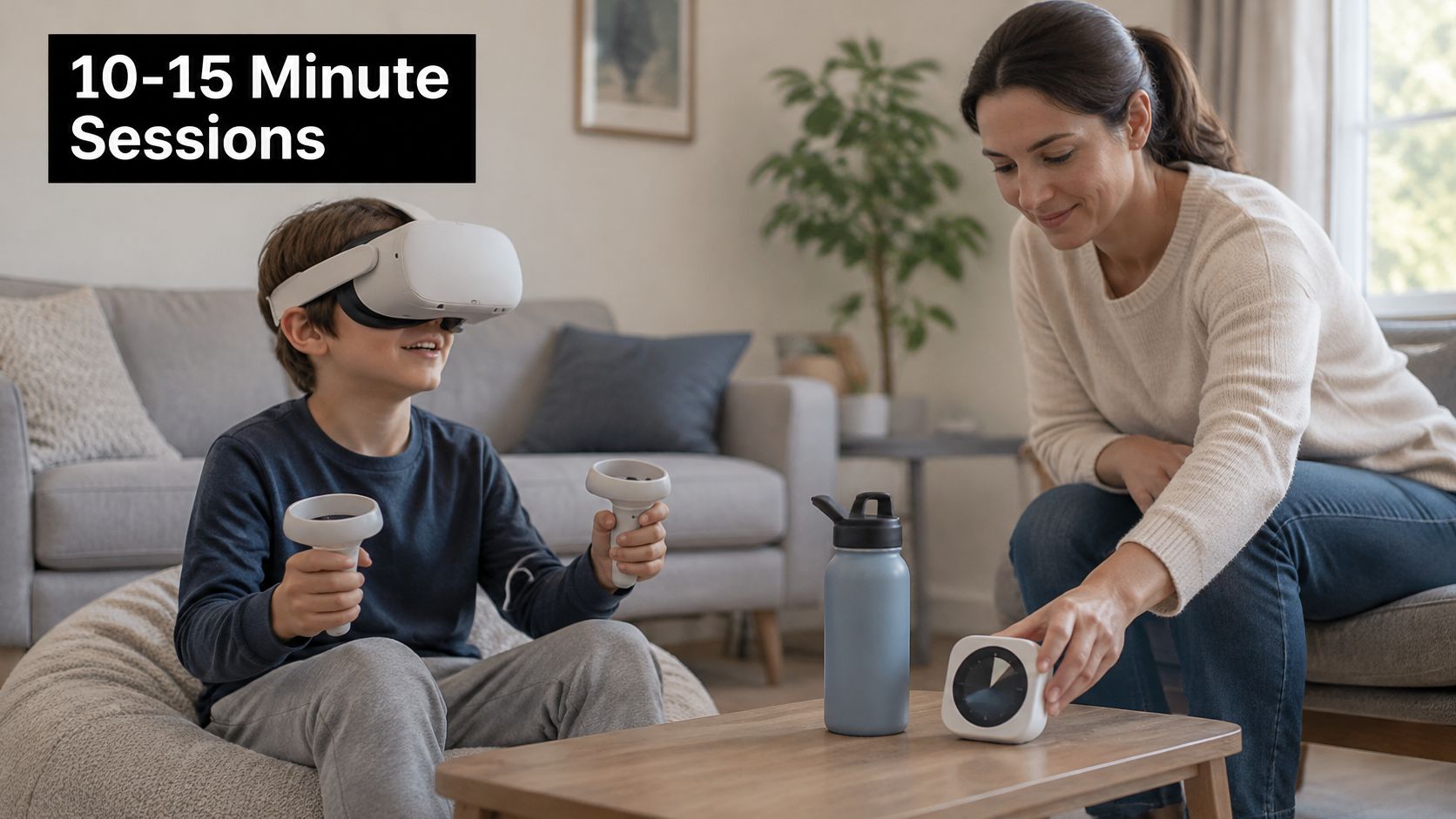
Motion-sickness susceptibility begins around ages 6 to 7 and peaks near ages 9 to 10, according to evidence summarized in the AMXRA guidelines. Those guidelines recommend approximately 10 to 15 minutes per session for children ages 7 to 12, with frequent breaks. This is a practical reason to be conservative with this audience, not a reason to frighten children away from VR.
Cybersickness can occur when the eyes report acceleration or rotation while the inner ear detects little or no corresponding movement. That conflict can cause nausea, dizziness, headache, or disorientation. Continuing to play can make the experience worse.
Symptoms, immediate action and when to resume
| Symptom | Immediate action | When to resume |
|---|---|---|
| Nausea or sweating | Remove headset at once and sit upright | Only after symptoms fully clear |
| Dizziness or loss of balance | Stop, keep the child seated and check footing | Only after symptoms fully clear |
| Headache or blurred vision | Stop and rest the eyes away from screens | Only after symptoms clear and an adult has reviewed the child |
| Disorientation or confusion | End the session and check for trips or collisions | Only after symptoms clear, the child is calm, and an adult has reviewed |
Make reporting discomfort easy
Before play, explain that an uncomfortable feeling is useful information, not a failure. Ask specific questions such as whether the room feels spinny, the picture looks blurry, or their stomach feels unsettled. Don't ask only whether they're having fun.
A child may want to keep playing despite discomfort, especially when friends are watching. Tell them beforehand that reporting a symptom won't cost them access to the other activities.
Once symptoms appear, remove the headset and help the child sit safely. Don't ask them to walk across a busy room while dizzy, and don't put the headset back on to finish a level.
Treat symptoms as a reason to change the plan
Resuming is optional, even after the child feels better. The table gives minimum conditions for reconsidering play, not permission to restart automatically. For a first experience, I'd end headset play for the occasion rather than test whether symptoms return.
If symptoms persist, are severe, or follow a collision or fall, seek medical advice. Confusion and balance problems shouldn't automatically be dismissed as ordinary game discomfort.
For a later attempt, choose a calmer experience and reduce the demands. Don't return straight to the same moving camera because the child tolerated a different game previously.
Session Length and Break Schedules by Setting
Session length, break and supervision by setting
| Setting | Session length | Break between sessions | Supervision |
|---|---|---|---|
| Home, introductory play | Short, timed turn | Off-headset rest and comfort check | Adult in the room |
| School class rotation | Short, timed turn | Planned recovery period | Trained staff and symptom check |
| Family fun day or festival | Short, timed turn | Scheduled gap before rejoining | A dedicated operator for each active headset |
| Birthday party | Short, timed turn | Another activity before reconsidering VR | Adult in the room |
| Daily total at home | Parent sets a conservative total, not a research-exposure target | Breaks remain necessary | Parent reviews comfort and the rest of the day |
For scheduling, I recommend an off-headset break of about 15 minutes between short turns, consistent with the conservative pediatric operating approach summarized in the AMXRA guidance. Use the session range established above as a ceiling, not a quota the child needs to complete.
A study exposure isn't a recommended allowance
A 2025 study of children ages 10 to 12 found that 60 minutes of daily VR for four consecutive days produced no detected adverse effects on vision, postural stability, hand-eye coordination, discomfort, or attentional control, according to the study published in Frontiers in Virtual Reality. That finding is reassuring within its tested conditions. It doesn't establish a universal daily allowance or prove long-term safety.
A session limit controls uninterrupted exposure. A daily limit controls the total amount of headset use. Splitting play into turns doesn't make an unlimited daily total sensible, and a tolerated daily total doesn't justify uninterrupted play.
Keep the home total below the study exposure while learning your child's response. Don't treat the absence of complaints as a reason to fill every available minute.
Build breaks into the activity
At home, set the timer yourself and place the next activity within reach. Drawing, a snack break, or ordinary conversation makes stopping easier than standing beside the headset waiting to restart.
For broader household habits, Prescript Glasses' resource on managing family screen time and eye health offers useful context for thinking beyond a single gaming session. Keep VR within the family's overall screen routine rather than treating it as an exception.
For event hosts: Don't schedule headset rotations so tightly that staff must choose between checking a child and keeping the line moving.
Give each active headset a dedicated trained operator. Build time for removal, a comfort check, equipment preparation, and a calm handover into the rotation.
Checking Each Game Before Your Child Plays
Family-friendly is a marketing description, not a complete suitability assessment. Meta's parent guidance calls for parental involvement, age- and maturity-appropriate content, suitable headset fit, clear boundaries, and supervision. Use those requirements to inspect the actual game mode your child will play.
I assess games across the following dimensions. A serious problem in any dimension is enough to reject the game for now.
Account and platform eligibility
Check the store listing, age rating, and content descriptors using the child's account. Don't assume a game is permitted because an adult can download it.
Look for purchases, subscriptions, linked accounts, and permissions beyond gameplay. If a parent can't understand or control the setup, choose something simpler.
Emotional content and social interaction
Watch for frightening characters, looming objects, sudden appearances, and threatening sound effects. Ask whether the child likes that kind of experience rather than assuming cartoon graphics make it comfortable.
Check voice chat, text chat, friend requests, public rooms, and user-created spaces separately. Private play with communication disabled is the stronger introductory choice. If those features can't be controlled reliably, skip that mode.
Motion intensity
Inspect smooth joystick walking, teleport-based movement, snap turns, continuous rotation, moving vehicles, and forced camera sequences. Don't assume teleportation automatically makes an experience comfortable, especially when navigation is frequent or visually abrupt.
Try the game yourself where possible. Pay attention to what happens when a level begins, the player falls, or a scene changes, not just ordinary movement.
Operational safety in a shared venue
Check the required reach and movement against the room. Keep spectators outside controller range, secure cables if present, and make sure the supervising adult can see the boundary.
Use the headset's display casting when available so the adult can understand what the child is responding to. Casting supports supervision; it doesn't replace watching the player.
Write a useful game note
For a stationary puzzle with chat disabled, the note might read:
- Why it fits: Stable viewpoint and an easy stopping point.
- Who should skip it: A child who dislikes its theme or can't use the controls comfortably.
- Adult configuration: Private mode, communication restrictions, and suitable seated positioning.
For an open-chat flight game, the decision is different. Fast viewpoint movement makes it a poor introduction, and public communication adds another concern. Close supervision doesn't turn an unsuitable first choice into a good one.
Your First-Session Plan
Your job during the introduction is to observe comfort, not to prove that the child can handle VR. Choose a quiet time when you can stop without disappointing a waiting group. Keep the experience simple enough that troubleshooting won't consume the whole turn.
Run the introduction deliberately
- Confirm readiness to start. Verify that the intended device, regional permissions, and parent-managed settings are in place. Ask the child to explain how they'll tell you they want to stop.
- Launch a screened experience. Select a stationary or gentle room-scale mode with public interaction disabled. Load it yourself so the child doesn't wander through unfamiliar menus.
- Stay beside the play area. Use a timer, watch posture and controller movement, and interrupt if the child keeps adjusting the headset or seems unsteady. You don't need to wait for a complaint.
- Check afterward. Ask about stomach comfort, vision, headache, and balance once the headset is off. Check again the following day before deciding how the experience went.
- Change only one demand at a time. After comfortable introductory play, consider a different mechanic without simultaneously adding public chat, harder controls, and faster camera movement.
Keep a simple note with the game title, mode, duration, and any symptoms or fit problems. Record what the adult configured as well, because a private creative mode and a public multiplayer mode aren't equivalent experiences.
Adapt the plan for a group
Organizers should assign a trained operator to every active headset and include a symptom check at handover. Give waiting children another activity, and keep the queue outside the play boundary.
When comparing mobile game rental options, ask how operators handle early stops, content selection, and participants who decide against wearing a headset. Those answers matter more than a long game menu.
If discomfort appears, return to a simpler plan on a later occasion rather than escalating. The first session is a test of this child's comfort with this experience, not a verdict on whether they're a VR gamer.
Phantom Entertainment offers virtual reality, arcade games, and other party and event rentals for family celebrations, schools, and community gatherings. Visit Phantom Entertainment to discuss age-appropriate game options, operator support, and a layout that gives children room to play and an easy alternative when they want a break.
Ready to Book Your Event?
PA state-inspected, fully insured since 1979. Call us or get a free quote today.